
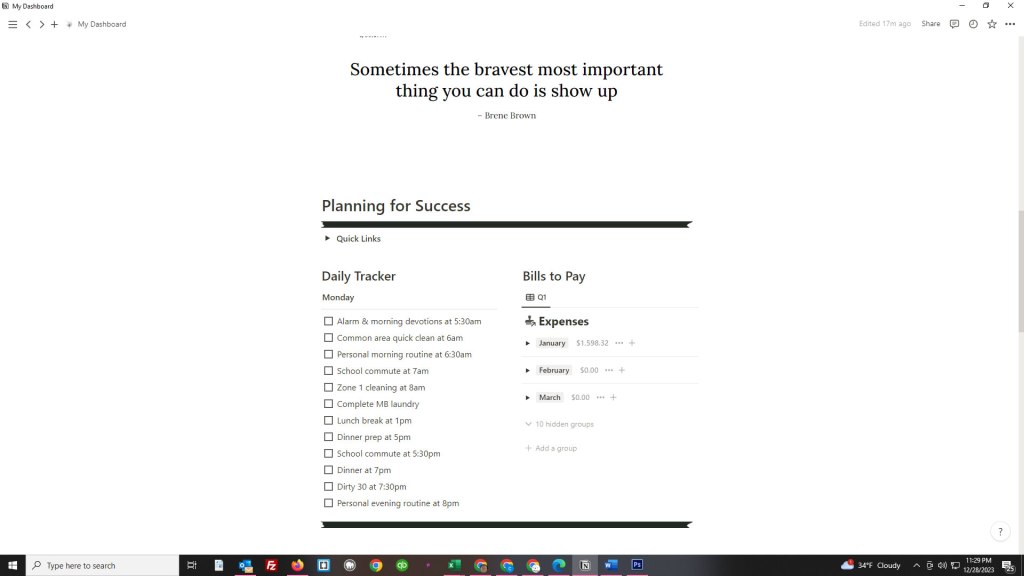
After the Navigation section, I created an inspiration and Planning for Success section. The inspiration section is a series of revolving quotes with inspiring and motivating messages using a widget. Widgets are easy to incorporate within Notion – just like adding a widget to your phone or tablet.
The Planning for Success section has some additional quick links to other pages that are more Professional related in that the links connect to the Ultimate Notes shortcuts. Basically, it is my digital notepad and inbox for storing and organizing notes for professional things. Personal notes can also be kept there or in tasks, as well is in other knowledge repositories like my Data Calendar or Daily Journal.
The Daily Tracker pulls in my list of habits from the Habit Tracker I got from Thomas Frank, another YouTuber and entrepreneur with information on how to use and set up Notion. It is from Thomas Frank that I was able to get the Habit Tracker, Ultimate Notes, and Ultimate Tasks templates. I just personalized them to match my style and needs.
The Daily Tracker uses a toggle for each day of the week that automatically copies and syncs the information from the Habit Tracker so I can check things off as I go. While referred to as a Habit Tracker, I am actually using it more as a routine manager. For the most part, Monday through Friday have the exact same list of routines that I do each day, with the only difference being the cleaning zone assigned to that day. As you can see in the image above, Monday refers to Zone 1 Cleaning.
As I mentioned in my Schedules or Routines post, I am not a big fan of scheduling everything to the minute; but I do have certain things at set times to anchor me throughout the day. As I move in and out of My Dashboard doing my work, taking notes, etc. I also check off things that I get done as I get them done.
The Bills to Pay section leverages a set copied and synced block from the Budget. My Budget page is actually a modified version of Humphrey Yang’s Financial Tracker. On My Dashboard, I am only interested in viewing the Bills (Expenses) that I have set up in the budget. Another great aspect of Notion is that you can create customized views of the database information to see what you want to see based on specific parameters. I have a filter set up to show me only the bills that must be paid within the next seven days. As I pay each expense, I check it off as being done and the data is also automatically captured within the database.
Tomorrow will feature the next section: Task Management.

 Meadows Cozy Corner
Leave a comment